Slack integration for notifications in your channels
Send the moments that matter, from paid invoices to accepted proposals, straight to the Slack channels your team already watches. Choose exactly what gets shared and where, and let Belvak deliver it in the background. Available on the Professional plan.
1
Slack workspace connected per Belvak workspace
17
event types across finance, sales, operations, and support
5
team events on by default; the rest stay off until you enable them
0
Slack messages Belvak ever reads
Capabilities
The right update, in the right channel
Belvak already knows when a payment lands, a proposal is accepted, or a teammate joins. The Slack integration puts those moments where your team is already looking.
Connect your workspace once
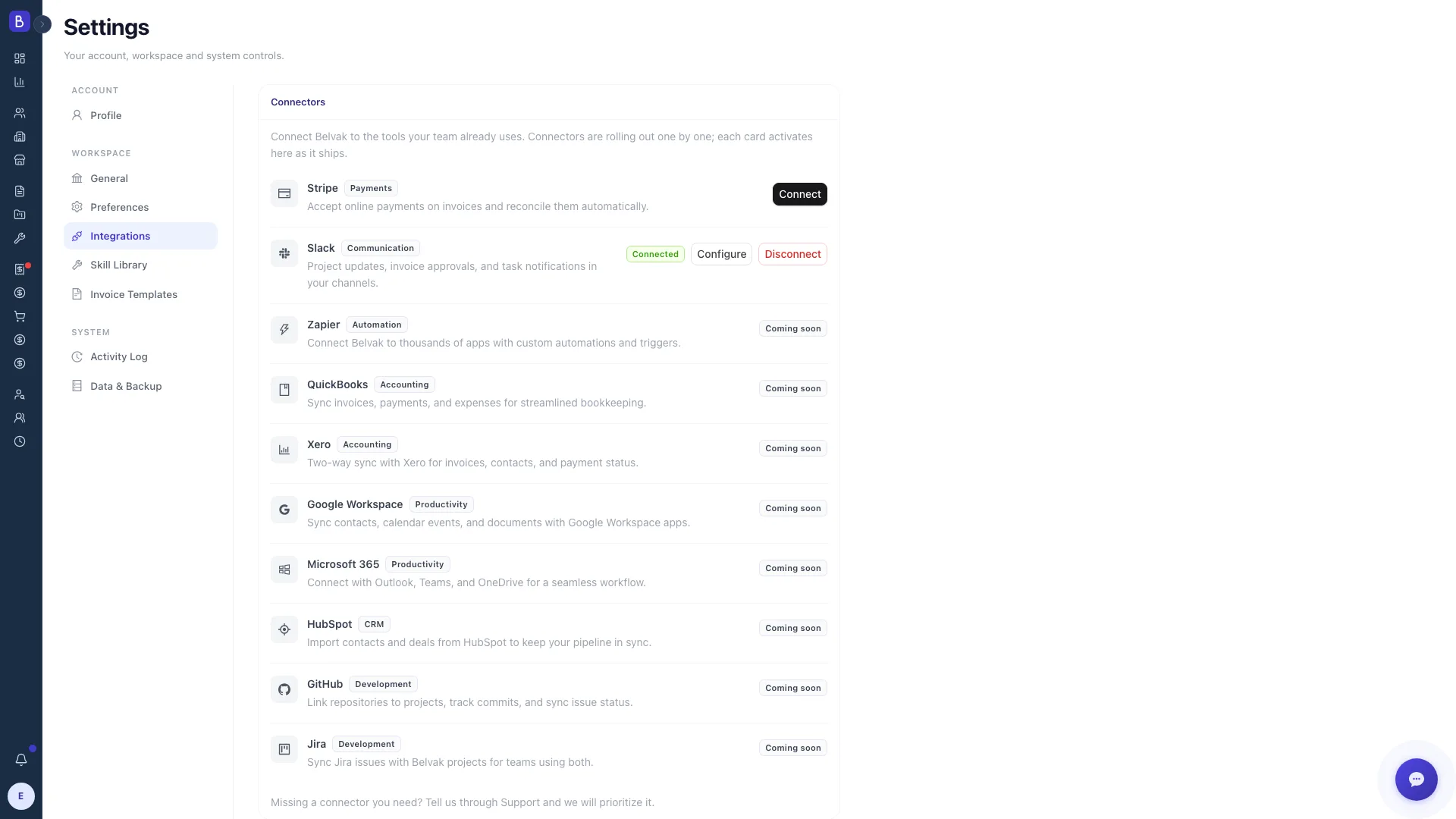
Install Belvak into Slack with a standard workspace install. One Slack workspace connects to your Belvak workspace, the credentials are stored encrypted, and an admin can disconnect at any time from the same screen.
Route each event to a channel
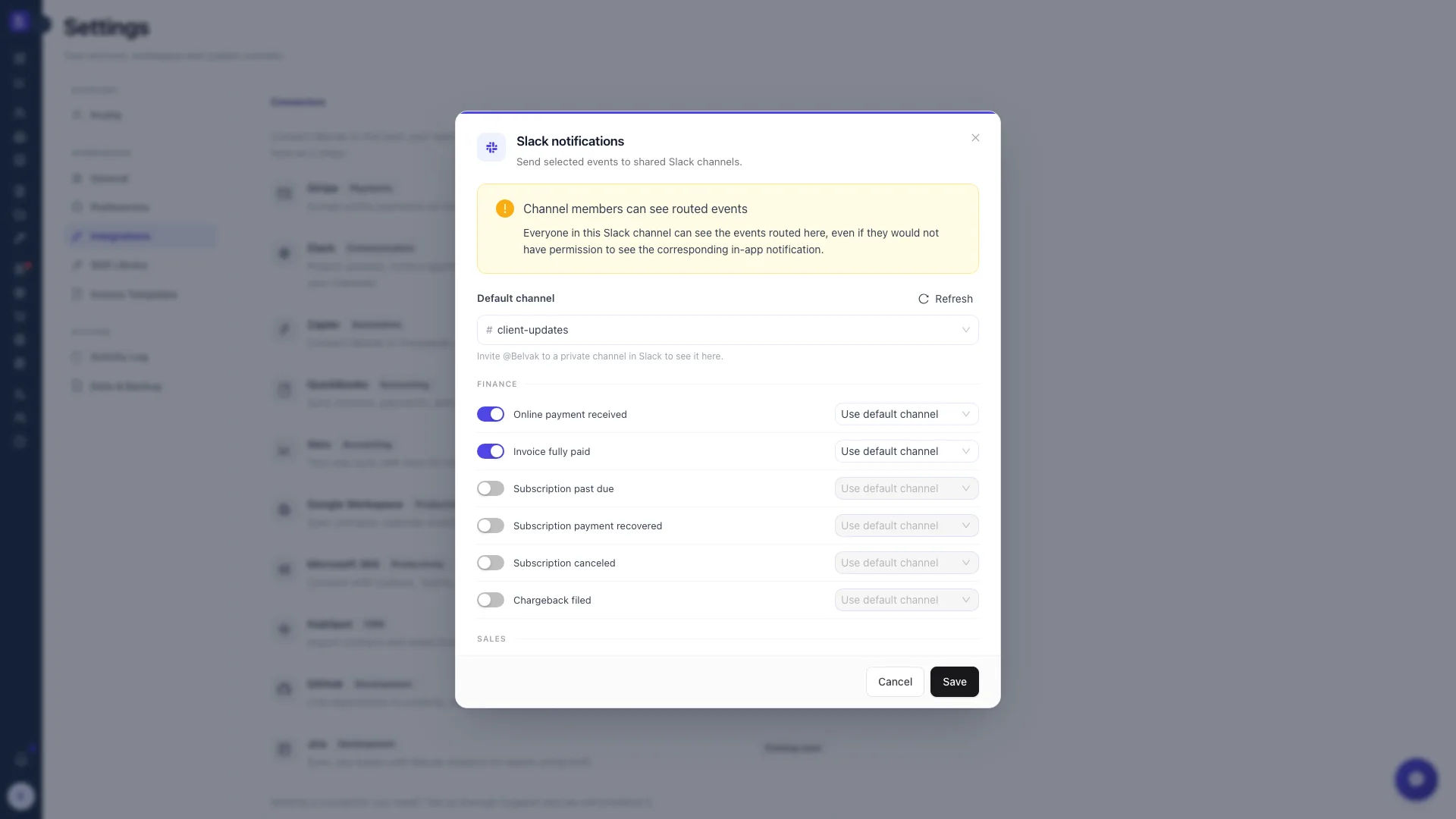
Belvak notifies on 17 event types across finance, sales, operations, and support. Send each one to a specific channel or to your workspace default, and let several event types share the same channel when that fits your team.
On for the team, off for the private
Five team-facing events are on out of the box. Personal or sensitive events stay off until an admin turns them on, behind a clear visibility warning, and Belvak never reads your Slack messages or sends direct messages.
Delivery that never blocks your work
Messages are queued and delivered in the background, in order per channel, respecting Slack's rate limits with automatic bounded retries. If Slack has an outage, your invoicing and payments in Belvak keep working normally.
A closer look
Decide what goes where, and who can see it
A Slack channel is visible to everyone in it, so routing and visibility are the same decision. Belvak makes that decision explicit before anything is shared.
Routing and visibility
One place to map every event to a channel
Pick a default channel, then send each event type where it belongs. Because personal or sensitive events could reach people who would not normally see them in Belvak, they stay off until an admin turns them on, behind a warning that spells out who will see them.
- Send each event type to its own channel, or to the workspace default
- Several event types can share one channel when that suits your team
- A clear visibility warning before you turn on personal or sensitive events
How it works
Four steps from connected to notified
01
Connect Slack
In Settings, open Integrations and install Belvak into your Slack workspace. One admin, about a minute, for the whole team.
02
Choose your channels
Pick a default channel and route each event type where it belongs. Turn on the events you want, and leave the rest off.
03
Work as usual in Belvak
Record a payment, get a proposal accepted, add a teammate. Belvak recognizes the moments worth sharing.
04
Slack fills in
The matching channel gets a clear message with the public reference number and a link back to the record, delivered in the background.
FAQ
Common questions about the Slack integration
Which plan includes the Slack integration?
Slack notifications are a Professional plan feature. On the Free plan the Integrations screen stays visible so you can see what an upgrade unlocks, but connecting Slack requires Professional.
Does Belvak read our Slack messages?
No. Belvak only posts to the channels you choose. It has no permission to read message history, and it never sends direct messages, reads, or replies to anything in Slack. There is no two-way sync and no slash commands in this version.
Which events are turned on by default?
Five team-facing events: an online payment received, an invoice fully paid, a proposal opened for the first time, a proposal accepted or declined, and a new team member joining. Everything else stays off until an admin enables it.
Can Belvak post to a private channel?
Public channels work as soon as you connect. For a private channel, invite the Belvak app to that channel first and it becomes a routing option. Belvak only ever posts to shared channels, never to direct messages or a personal space.
What happens if Slack is down?
Nothing breaks in Belvak. Messages are queued and retried automatically in the background, so a Slack outage never blocks your invoicing or payments. Delivery catches up on its own once Slack is back.
Who can set up and change the Slack integration?
Only admins with the workspace settings permission. They connect the workspace, choose the channels and events, and can disconnect at any time, which cancels anything still queued and revokes the connection.
Keep exploring
Wired into the work you already do
Slack notifications ride on the events Belvak already tracks across billing, sales, and your team, so there is nothing new to maintain.
Bring Belvak into your channels
Connect Slack once, choose what your team should see, and let the updates arrive on their own.
Free for 1 user. Team access and advanced features require Professional.