QuickBooks integration for books that stay current
Connect one QuickBooks Online company and let Belvak push your clients, invoices, payments, paid expenses, and paid payroll across on its own. Belvak stays the source of truth, and the sync only ever runs one way. Available on the Professional plan.
1
way sync, from Belvak into QuickBooks, never the reverse
6
record types synced: clients, invoices, payments, suppliers, expenses, payroll
0
re-entry for synced records: they post themselves in the background
2
expense scopes you control: supplier expenses and payroll
Capabilities
Your billing, mirrored in your books
The QuickBooks integration closes the gap between the work you invoice in Belvak and the ledger your accountant reads: every record flows across on its own, no double entry.
Connect one company, keep Belvak as the source
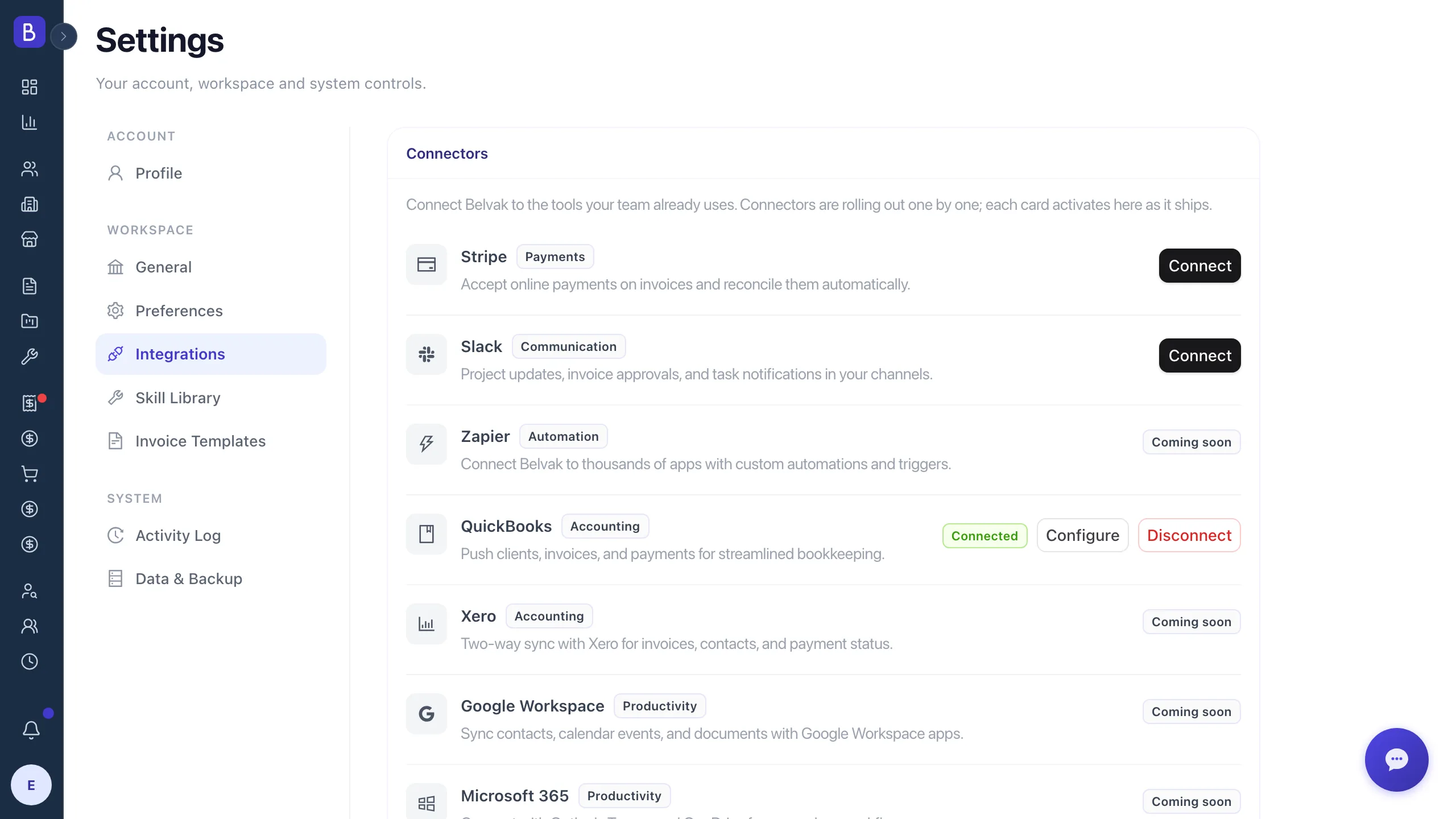
Sign in with your Intuit account and connect one QuickBooks Online company to your workspace. The sync only ever pushes from Belvak to QuickBooks, so nothing in QuickBooks changes your Belvak data. At connect, Belvak reads just the company profile: its name, country, and currency settings.
Invoices and payments post themselves
Each invoice pushes as a single-line QuickBooks invoice for its full total, and the client is created as a QuickBooks customer automatically with their first synced invoice. Payments land against the same invoice, and a cancelled or deleted invoice is voided in QuickBooks. Credit notes sync as credit memos and refunds as refund receipts, so QuickBooks shows the same open balance you see in Belvak. Invoice numbers carry a BV- prefix so you can trace them back to Belvak.
Expenses and payroll reach your books
Once an expense is marked paid, it becomes a QuickBooks expense with the supplier as the vendor. Paid payroll records become expenses too, with the employee named in the description. The expenses-and-suppliers sync and the payroll sync can each be switched off if you would rather keep them out of QuickBooks.
Set the details, then leave it running
Choose the QuickBooks item name used on synced invoices (Belvak Services by default), and optionally backfill from a date you pick so existing invoices, payments, expenses, and payroll come across too. After that, the sync runs on its own in the background.
A closer look
What crosses over, and how you control it
Belvak keeps holding the real numbers. The sync just makes sure QuickBooks shows the same picture, on the terms you set once when you connect.
What syncs
Your invoices, mirrored line for line
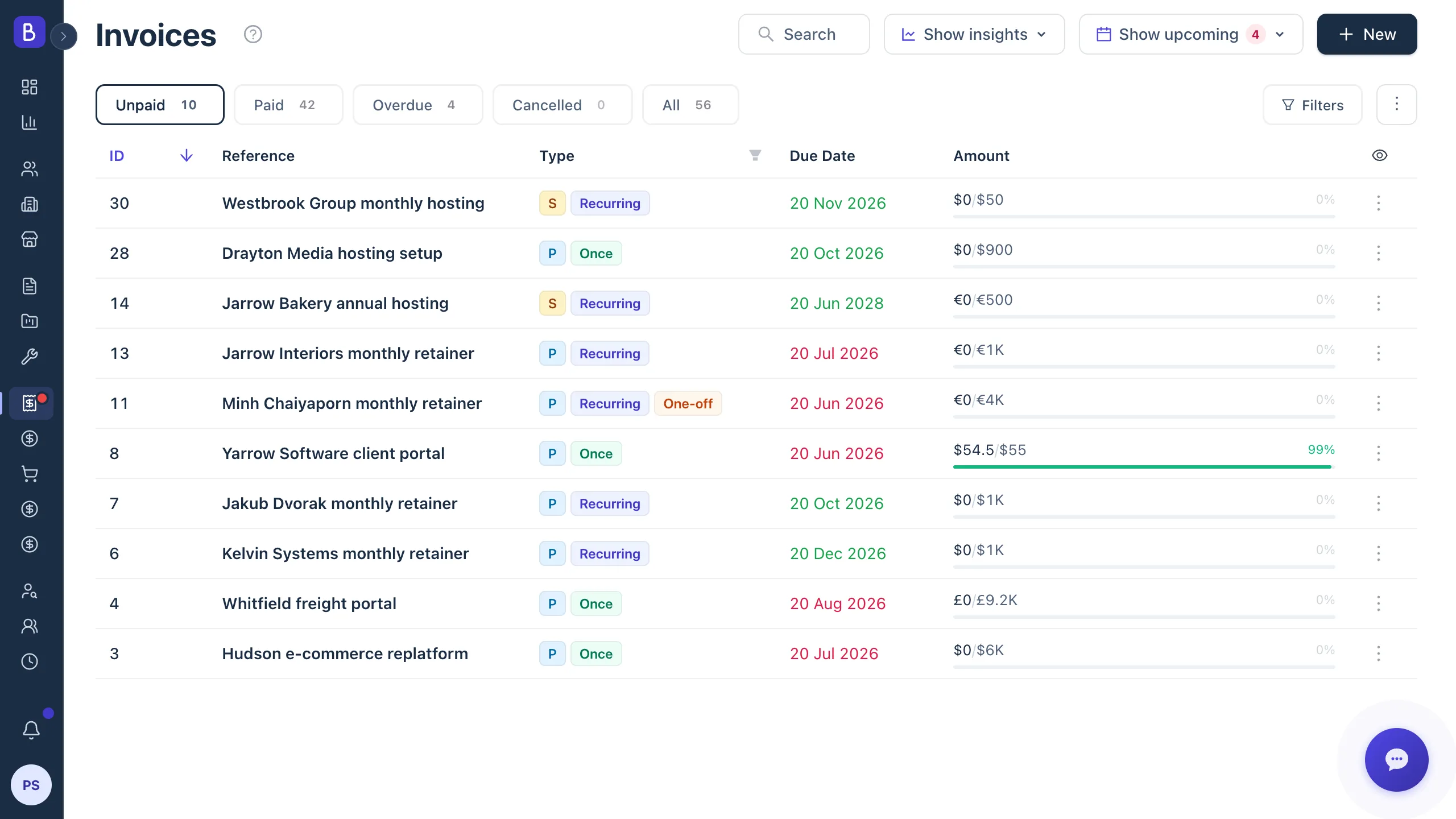
The invoices you already send in Belvak show up in QuickBooks as single-line invoices for the full total, with the client created as a customer the first time they are invoiced. Payments follow onto the same invoice, and voids follow too, so your books stay in step without a second round of data entry. Corrections keep pace as well: reduce an invoice and QuickBooks gets a matching credit memo, record a refund and it books a refund receipt, so both ledgers agree on what is still owed.
- Clients become QuickBooks customers automatically, created with their first synced invoice
- Each invoice posts as a single line for the full invoice total, numbered with a BV- prefix
- Payments record against the same invoice, and a cancelled or deleted invoice is voided in QuickBooks
- Credit notes post as QuickBooks credit memos (BV-CN-) and refunds as refund receipts (BV-RF-), so both ledgers show the same open balance
- Invoice taxes match your QuickBooks totals: real tax codes outside the US, and the tax breakdown in the line description for US companies
Money out
Expenses and payroll, booked with the same care
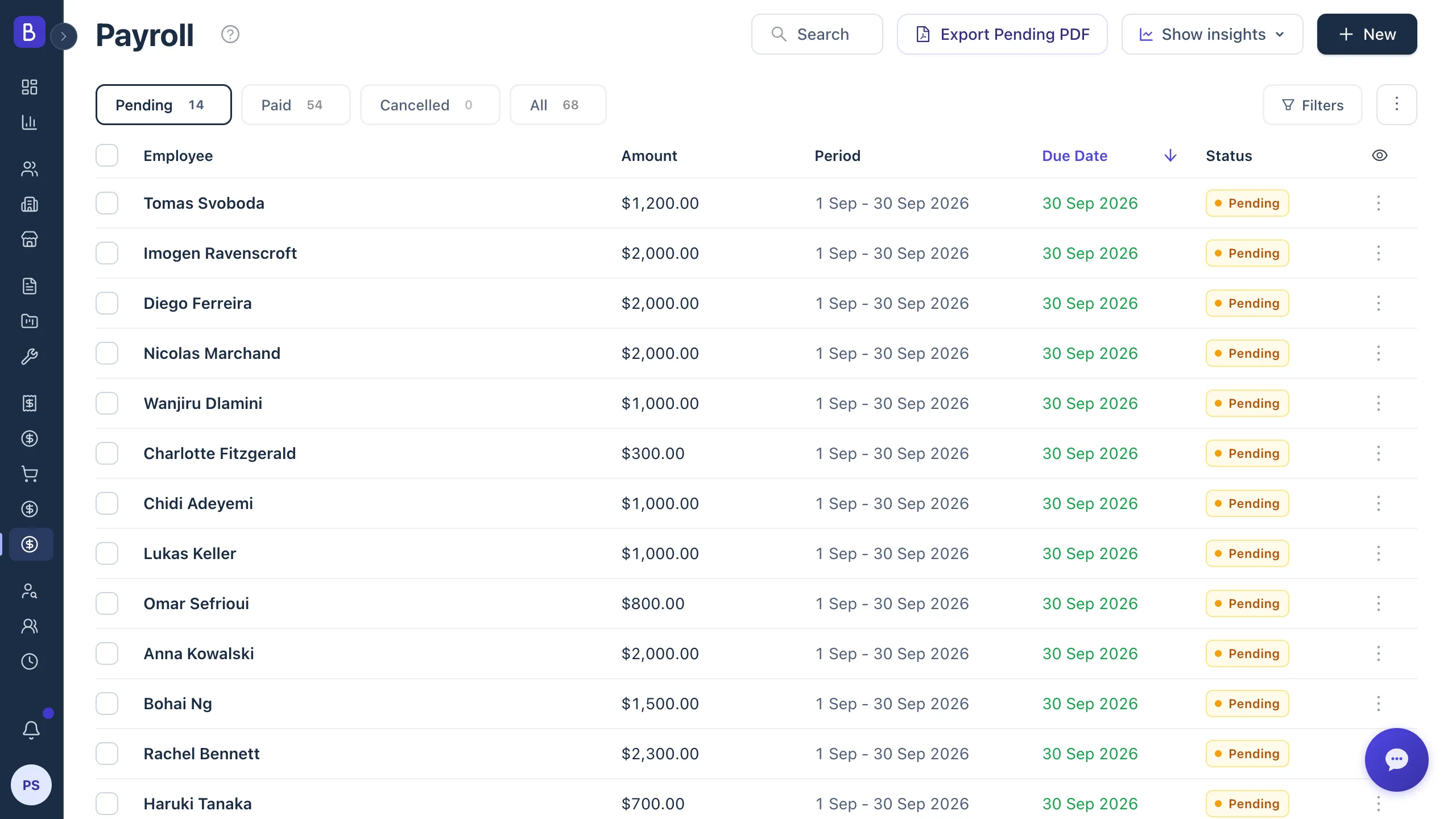
The sync does not stop at invoices. Your spending side is a first-class citizen: mark an expense paid and it lands in QuickBooks as an expense under the right vendor, run payroll and each paid payroll record posts as an expense of its own. The money-out half of your books writes itself too.
- An expense marked paid posts as a QuickBooks expense under the supplier's vendor record
- A paid payroll record posts as an expense with the employee named in the description
- Expenses carry BV-P- and BV-EP- numbers, so every one traces back to its Belvak record
Setup
Configured once, from the same Settings screen
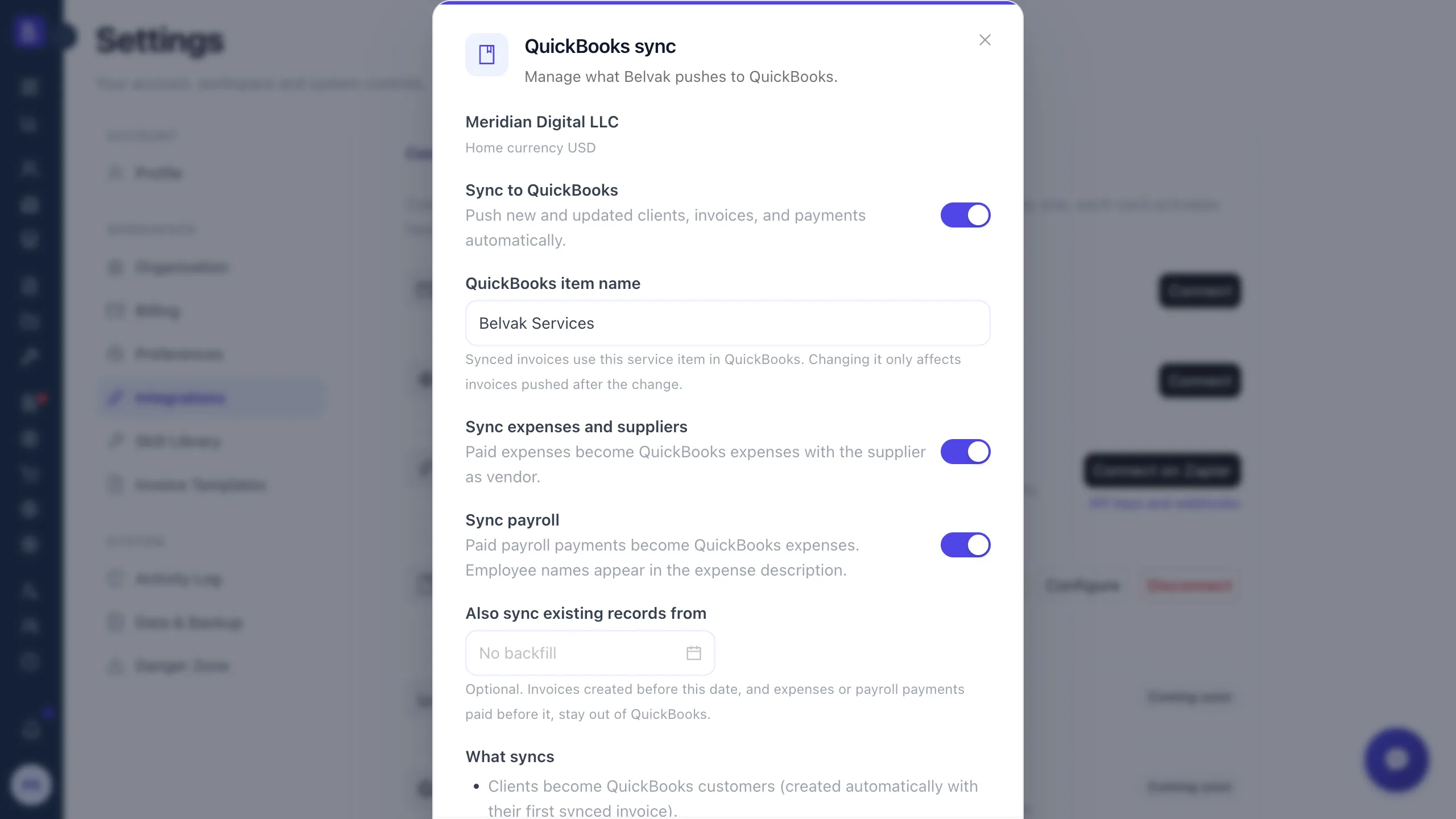
QuickBooks lives in the same Integrations screen as every connector we ship. When you connect, you set the item name for invoices, decide whether to backfill from a date, and choose whether expenses and payroll come across. After that, there is nothing left to touch.
- Set the QuickBooks item name for synced invoices, or keep the Belvak Services default
- Backfill from a date you choose to bring existing invoices, payments, expenses, and payroll across
- Turn the expenses-and-suppliers sync or the payroll sync off whenever they should stay out
How it works
Four steps from connected to in sync
01
Connect QuickBooks
In Settings, open Integrations and sign in with your Intuit account to connect one QuickBooks Online company. One time, admin only, about a minute.
02
Choose what syncs
Set the item name for invoices, pick an optional backfill date, and switch the expenses or payroll sync off if either should stay out of QuickBooks.
03
Work as usual in Belvak
Send invoices, record payments, and mark expenses and payroll paid. Belvak stays your source of truth for every number.
04
QuickBooks keeps up on its own
Each record posts itself in the background, and invoices and expenses carry a BV- prefix that ties them back to Belvak.
FAQ
Common questions about the QuickBooks integration
Which plan includes the QuickBooks integration?
The QuickBooks sync is a Professional plan feature. On the Free plan the Integrations screen stays visible so you can see what an upgrade unlocks, but connecting QuickBooks requires Professional. Setting it up and disconnecting need the workspace settings permission, so an admin does it once for the whole workspace.
Does QuickBooks change anything in Belvak?
No. The sync is one-way: Belvak is the source of truth and it only pushes records into QuickBooks. At connect, Belvak reads just the company profile (its name, country, and currency settings), and nothing you do in QuickBooks writes back to Belvak.
What actually syncs to QuickBooks?
Both sides of your books. Money in: clients become QuickBooks customers (created with their first synced invoice), invoices push as single-line invoices for the full total, payments record against them, and cancelled or deleted invoices are voided. Credit notes follow as QuickBooks credit memos and refunds as refund receipts, so both ledgers show the same open balance, and invoice taxes land in your QuickBooks totals too. Money out, just as deliberately: every expense you mark paid posts as a QuickBooks expense under the supplier's vendor record, and every paid payroll record posts as an expense with the employee named, so supplier spending and payroll reach your books with the same care as your invoicing.
Does it work with QuickBooks Desktop?
No. The integration works with QuickBooks Online, not QuickBooks Desktop. You connect one QuickBooks Online company through the standard Intuit sign-in, with no code involved.
How does multi-currency work?
Multi-currency is supported. A client you invoice in several currencies maps to one QuickBooks customer per currency, so each currency stays clean in your books. Foreign-currency records need Multicurrency enabled in the QuickBooks company before you connect.
How are invoice taxes handled in QuickBooks?
It depends on where your QuickBooks company is. If your QuickBooks company is outside the US and has sales tax set up, Belvak maps each invoice tax to a real QuickBooks tax code, creating a matching code when one does not exist and preserving the exact tax amounts. US companies use QuickBooks Automated Sales Tax, which cannot be set through the connection, so their invoices carry the tax breakdown in the line description instead; the same applies until sales tax is set up in your QuickBooks company. Either way, the invoice total in QuickBooks matches Belvak's total to the cent, so payments always reconcile. A couple of limits still apply: invoices post as a single line rather than itemized, and expenses and payroll sync only after you mark them paid in Belvak.
Keep exploring
Wired into the billing you already run
The QuickBooks sync rides on the invoices, payments, expenses, and payroll Belvak already tracks, so there is nothing new to maintain on either side.
Keep your books current on their own
Connect QuickBooks Online once, keep working in Belvak, and let your clients, invoices, payments, and expenses sync themselves.
Free for 1 user. Team access and advanced features require Professional.