A file archive on every project
Every project gets its own storage for files: drag them in from the browser, or push them straight over SFTP from backup tools, scanners, and devices. Built for service teams of 5 to 50 people.
3 GB
per file, uploaded in resumable parts
14 days
to restore deleted files
10
SFTP connections per project
50 GB
archive storage on Professional
Capabilities
One place for the files a project produces
The archive keeps a project's files where the work is, and lets your tools and devices deliver them without anyone logging in to move things by hand.
Files that live on the project
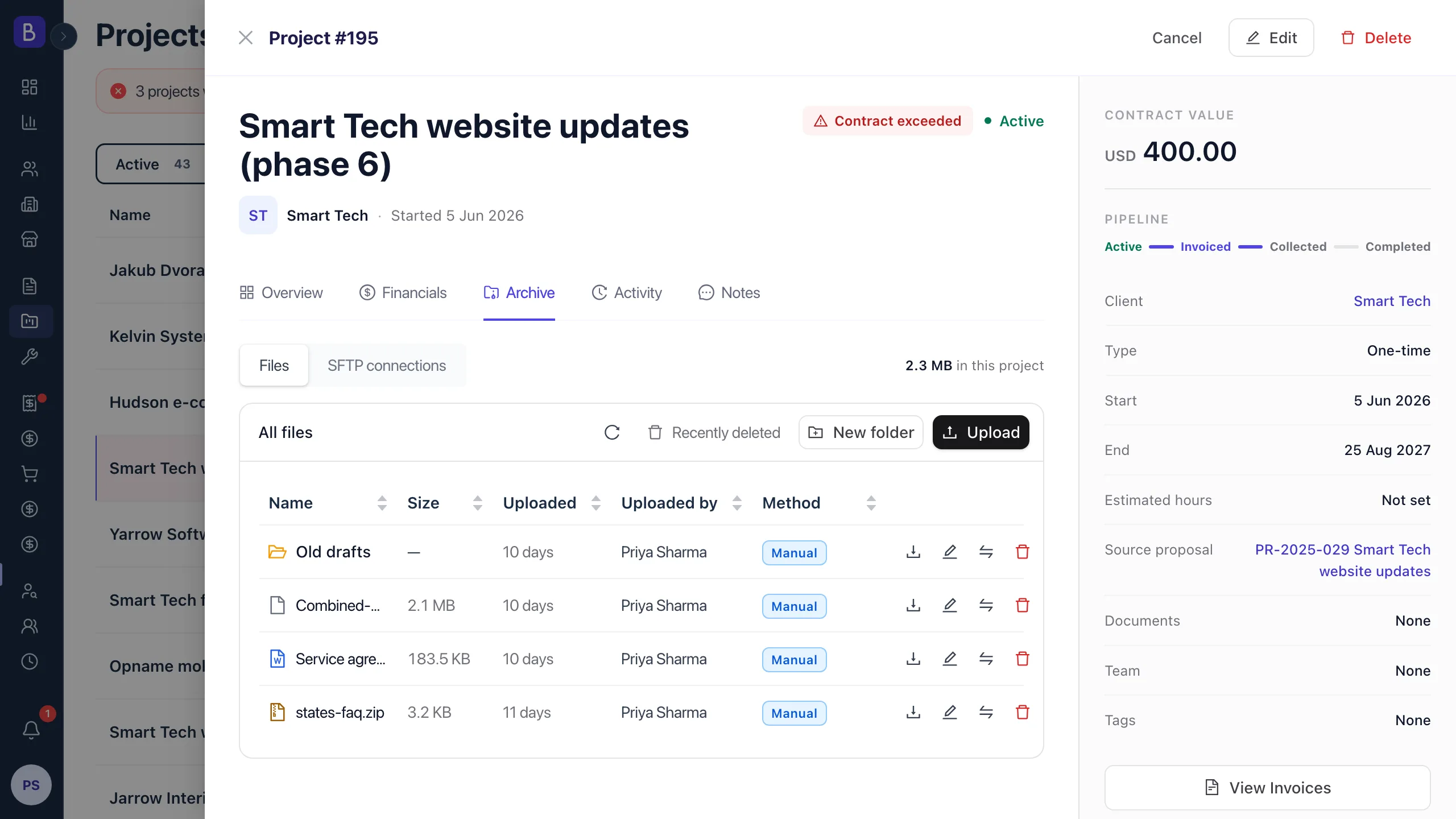
Drag and drop uploads land straight in the project you are looking at, one file or many at a time. Organize them into folders, rename and move as you go, and download a whole folder as a single zip. A Method column on every row shows how each file arrived, whether it was added manually or pushed in by a connected device.
Direct uploads from tools and devices
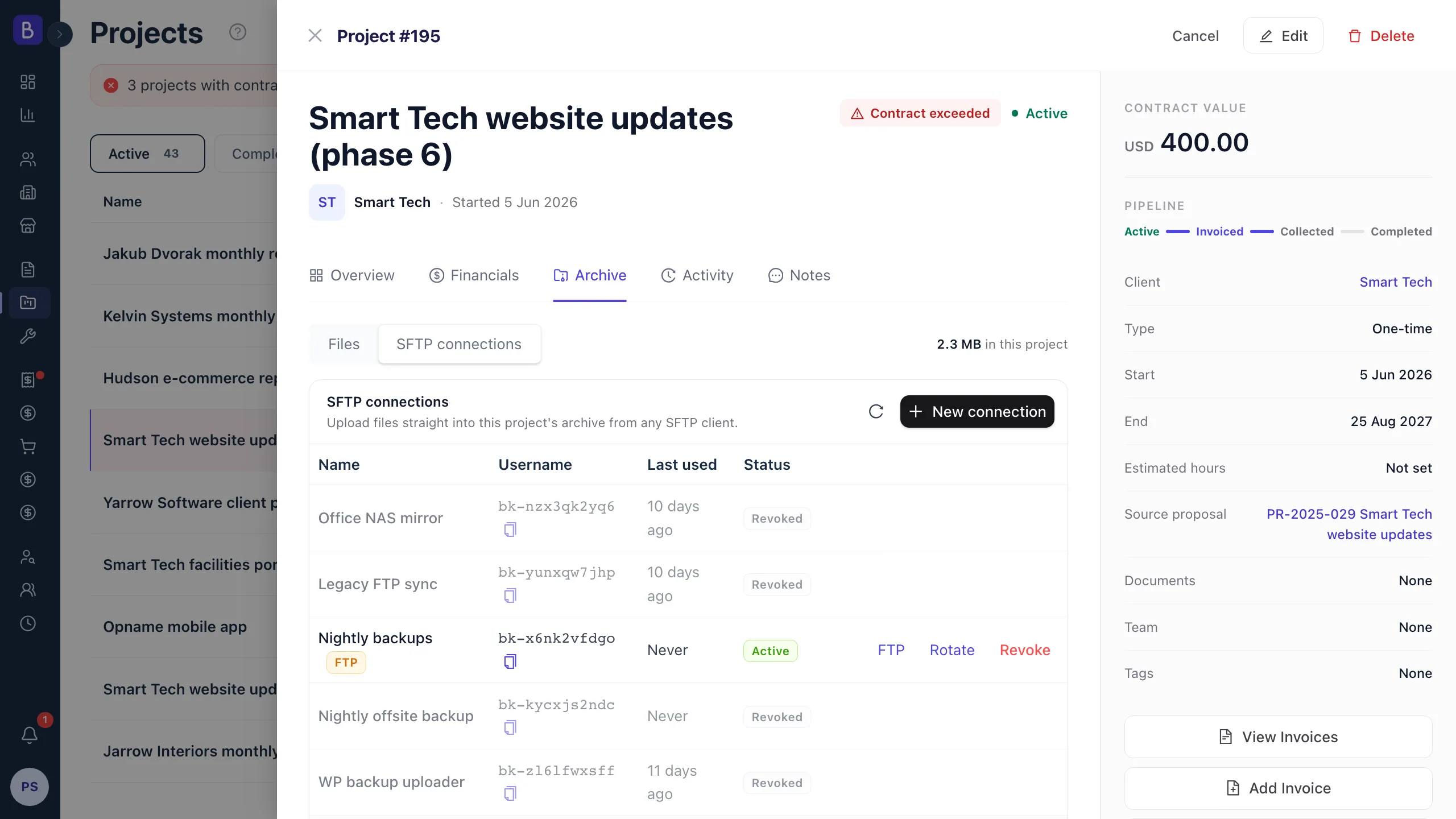
Give each project its own SFTP connection with a unique username and a password shown once at creation. Backup tools, scanners, cameras, server scripts, and any SFTP client can upload straight into the right project's archive, and every connection is scoped to that one project.
FTPS and legacy FTP, per connection
Every connection runs SFTP only by default, the recommended mode. Switch a single connection to also allow FTPS for TLS FTP clients, or opt in to plain FTP for older devices that still need it. Modes change any time, and none of them are tied to your plan.
Safety nets around every file
Deleted files move to Recently deleted and stay restorable for 14 days, whether they were removed in the browser or over SFTP. Uploading over an existing name in the browser asks for confirmation, hitting the storage limit turns the archive read-only rather than dropping files, access follows workspace roles, and uploads, renames, moves, deletions, and connection changes are all recorded in the activity log.
Client credentials, encrypted and masked
Keep the logins a project runs on, hosting, domains, FTP and SSH, CMS admins, mailboxes, and API keys, in a Credentials sub-tab beside the files. Values are encrypted at rest with authenticated encryption, and each workspace's keys are kept separate from the data. They stay masked by default, so you can copy a username or password without ever showing it and reveal only when you mean to. Every reveal is logged with who and when, separate role permissions decide who can see the list and who can uncover a value, and adding credentials is on the Professional plan.
A closer look
Built for real handovers
Give every device its own way in, and give yourself an undo button. Two parts of the archive make it safe to let files flow in from all directions.
Connections
One set of credentials per device
Instead of one shared login, every device or tool gets its own named connection. Revoke the laptop that walked out the door and the scanner in the back office keeps working. A Last used column tells you which connections are still active and which have gone quiet.
- Up to 10 connections per project, and 25 across the workspace
- Each connection has its own name, unique username, and one-time password
- Rotate for a fresh password or revoke permanently, both effective instantly
- Host, port, and the /archive remote path are shown at creation
Recently deleted
A 14-day undo for the archive
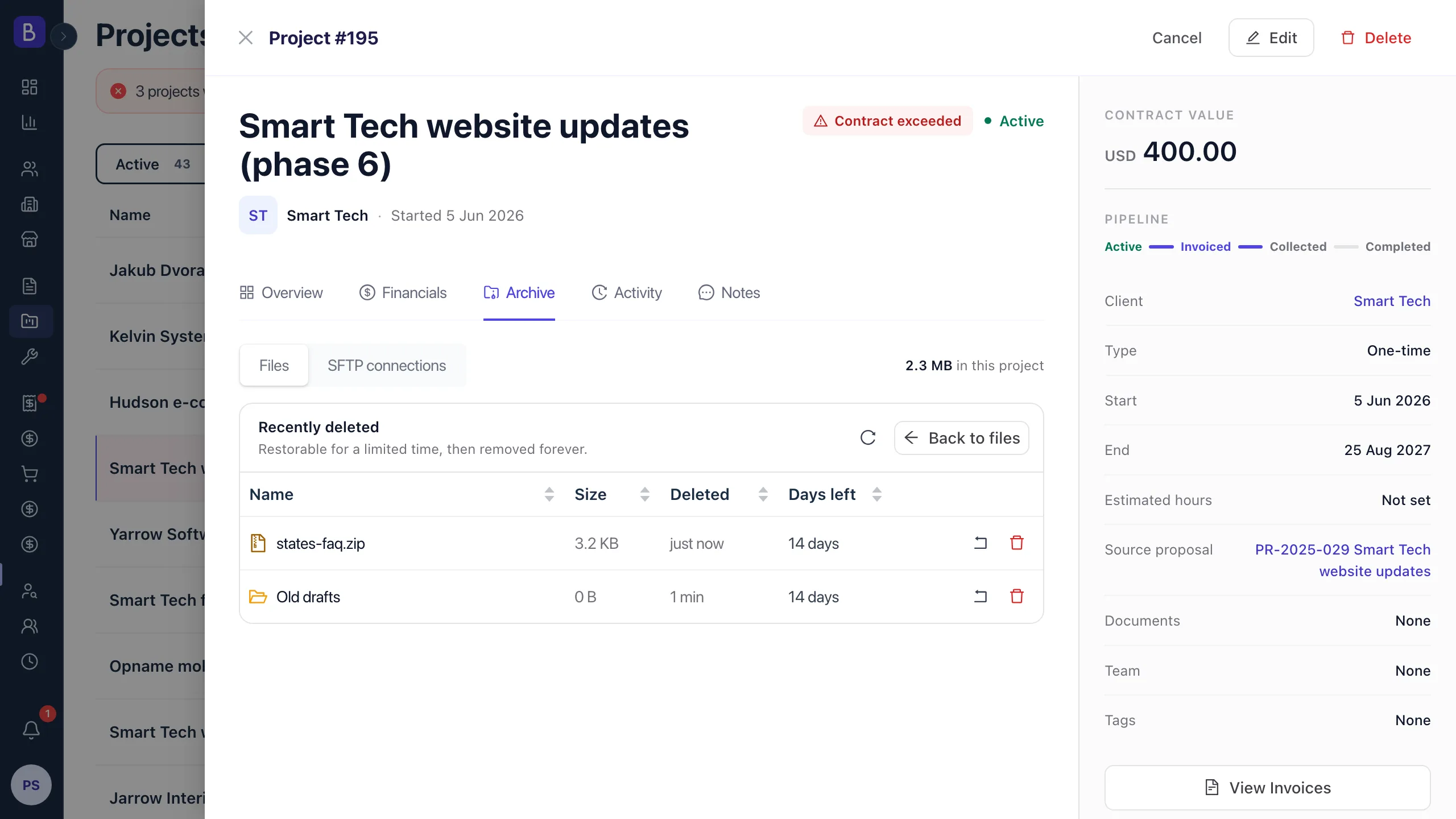
Nothing leaves the archive the moment it is deleted. Files land in Recently deleted with a Days left countdown and stay restorable for 14 days, whether they were removed in the browser or over SFTP or FTP. When you are sure, Delete forever clears them; otherwise they age out on their own.
- A Days left column counts down the 14-day restore window
- Restore any file, or Delete forever when you are certain
- Deletions made over SFTP or FTP go through the same recycle bin
How it works
From a dropped file to a clean handover
01
Open the Archive tab
Every project view has an Archive tab. Files and SFTP connections both live there, under one shared storage total for the project.
02
Drop files or connect a device
Drag files in from your computer, or create an SFTP connection and point a backup tool, scanner, or server at it.
03
Files land in the right project
Uploads appear in the project they belong to. The Method column shows whether each arrived manually or over SFTP, and the project total updates.
04
Hand over or restore
Download a folder as a single zip to hand it off, and if something goes missing the 14-day safety net brings it back.
FAQ
Common questions about the project archive
How is the project archive different from the documents section?
The documents section is Belvak's general file storage for paperwork like contracts, with its own workspace allowance. The archive is separate, per-project storage with its own pool (200 MB on Free, 50 GB on Professional) that also accepts uploads over SFTP. Use the archive when files belong to a specific project or need to arrive straight from a device.
What can upload files over SFTP?
Any SFTP client or device works: FileZilla, WinSCP, Cyberduck, backup plugins, scanners, cameras, and server scripts. Each project can have its own connections, each with a unique username and a one-time password, and every connection is scoped to that single project's archive.
Is FTP supported, or only SFTP?
Connections use SFTP only by default, which is the recommended mode. Any connection can be switched to also allow FTPS for TLS FTP clients, or opt in to plain unencrypted FTP for legacy devices. You set the mode per connection and can change it at any time. It is not a paid add-on.
What happens when the archive storage is full?
Archive storage is shared across the workspace, 200 MB on Free and 50 GB on Professional. Admins are notified at 80 percent, and once the limit is reached the archive turns read-only: uploads pause, but downloads and deletes keep working so you can free up space. If a workspace moves to Free while holding more than the Free limit, the archive stays read-only for 60 days, with email reminders, before its contents are removed.
What happens to files I delete?
Deleted files move to Recently deleted and stay restorable for 14 days, with a Days left column counting down before they are removed. You can Delete forever to clear a file sooner, and deletions made over SFTP or FTP go through the same recycle bin.
Who on my team can access the archive?
Access follows your workspace role permissions for view, add, edit, and delete. Those checks cover the browser: anyone holding a connection's credentials can also delete over SFTP or FTP, with the 14-day restore window as the safety net. Uploads, renames, moves, deletions, and connection changes are recorded in the activity log.
Can I store client passwords and logins on a project?
Yes. Every project has a Credentials sub-tab in the Archive tab for the logins the work depends on: hosting, domains, FTP or SSH, CMS admins, mailboxes, and API keys. Values are encrypted at rest with authenticated encryption, and each workspace's keys are kept separate from the stored data. They stay masked by default, so you can copy a username or password without showing it and reveal only when you mean to, and every reveal is logged with who and when. Separate role permissions decide who can see the list and who can reveal a value, and adding credentials is available on the Professional plan.
Keep exploring
Part of the project, not a bolt-on
The archive sits inside every project alongside its proposal, invoices, payments, notes, and team.
Keep every project's files in one place
From browser drag and drop to SFTP uploads off your devices, Belvak gives every project a file archive with a built-in safety net.
Free for 1 user. Team access and advanced features require Professional.